
A drone shot grabs attention in under five seconds. On its own, though, it doesn't sell anything. What comes next does: the rooms, the space, the light. That's what turns a hook into a showing. The problem is that most agents stop at the aerial shot because they don't know how to cleanly combine raw drone footage with the rest of their video content.
This tutorial shows you how to edit real estate drone video by following your aerial shot with AI clips generated from your interior photos, all inside the IACrea real estate video editing app, without exporting anything to a third-party editor.
What you'll learn in this tutorial:
- How to import your drone shot into the editor like any other media
- How to put the aerial shot and your AI clips on the same timeline
- Which order and which transitions look the most professional
- How to add music, a voiceover, and subtitles before you export
- The mistakes that give away a rushed edit
What you need before you start
You only need three things to edit a real estate drone video with IACrea:
- An IACrea account. The free trial is more than enough for a first edit.
- An
.mp4file of your drone shot, flown by you or by a hired pilot. Any drone flight for a listing is commercial use under the FAA's Part 107 rules, so the pilot needs a Remote Pilot Certificate. If you don't have a pilot yet, our real estate drone guide covers the FAA rules and what a shoot costs. - One or more interior photos to turn into AI real estate video clips.
There's nothing to install and no extra editing software to buy. The whole job, from import and ordering to transitions and export, happens in your browser.
How the IACrea video editor works: sequences and media
Two ideas are all you need to understand the tool. An IACrea video is made of sequences: blocks in order on a timeline, each with its own duration and its own entry transition. Each sequence holds one media file, either a photo or a video.
Here's the key point for this tutorial: the editor makes no structural difference between media generated by AI and media you import yourself. Your drone shot becomes a sequence like any other, exactly like a clip generated from a living room photo. You can reorder it, trim it, and give it a transition the same way, on one single timeline.
On top of the image sequences, two audio tracks sit independently of the image edit: one background music track for the whole video, and a voiceover with synced subtitles that you can turn on or off sequence by sequence.
Tutorial: combine drone footage and AI video in 6 steps
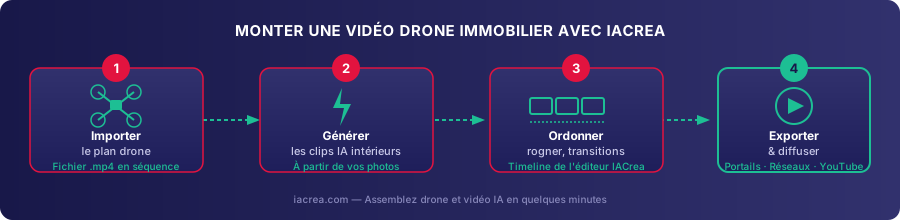
Step 1: Import your drone shot
Open the video editor, click Add an item, and import your .mp4 file as a video in a new sequence. The drone shot becomes your first sequence. You don't need to convert or prep the file: it imports like any other media.
Step 2: Generate your interior AI clips
Next, import your room photos and generate an AI real estate video clip from each one with Animate the photo: a slow push-in for the living room, a pan for the kitchen, a slow zoom for the bedroom. Each generated clip lands as a new sequence after the drone shot.
The IACrea editor: the drone shot and the AI clips share one timeline, with no technical difference between them
Step 3: Put the sequences in order on the timeline
Drag the sequences into their final order. The general rule: the drone shot opens the video to place the home in its setting, then the interior clips follow the path of a showing (entry, living room, kitchen, bedrooms).
Step 4: Trim each sequence
Raw drone footage often runs 20 to 30 seconds, far too long for a listing video. Use Crop My Video to set the in and out points of each sequence and keep only the best part. Four to six seconds of aerial footage is plenty to hook the viewer.
Step 5: Pick your transitions
Each sequence has its own entry transition. A simple Fade between the drone shot and the first interior clip works in almost every case. The next sections cover the other options.
Step 6: Music, voiceover, and export
Add Background Music, plus a Voiceover with automatic Subtitles if you want one, then export the video with Download My Video. Plan on a few minutes total to combine one drone shot with three or four interior clips.
Which shot opens the video, and what comes next?
Each shot plays a different role in the finished video. Here's the breakdown that works best in the videos IACrea agents put together:
| Shot type | Role in the video | Suggested length |
|---|---|---|
| Drone shot (flyover, rising shot) | Opening hook that places the home in its surroundings | 4–6 sec |
| AI push-in clip (living room) | Invites the viewer inside | 5–8 sec |
| AI pan clip (kitchen) | Shows the full layout | 5–8 sec |
| AI slow-zoom clip (bedroom) | Sets a cozy mood | 5–8 sec |
| Drone shot or logo (closing) | End signature and brand reminder | 3–4 sec |
Which transition works between an aerial shot and an interior shot?
The cut from a drone shot (wide, sweeping exterior movement) to an interior clip (tighter movement) is the most visible moment of the edit. The wrong choice instantly makes the video look thrown together.
| Transition | Effect | Best use |
|---|---|---|
| Fade | Soft cross-dissolve | Between the drone shot and the first interior shot: the safest choice |
| Wipe | The new sequence slides over the previous one | Between two different rooms, to mark the change of space |
| Slide | The new sequence pushes the previous one out | Between two shots with similar movement |
| Flip | 3D card-flip rotation | Avoid it between drone and interior: too heavy for a listing video |
| Time-of-day sweep | Circular reveal, like a clock hand | A signature effect: use it on one shot per video at most |
| Iris | Circular opening or closing | Works well on a detail shot (kitchen, bathroom) |
| None (hard cut) | Straight cut | Between two shots with very similar pacing and framing |
Where to share your finished drone video
Once it's exported, your video works across several channels:
- Your listing on the MLS and on portals like Zillow and Realtor.com, alongside the photos. The National Association of REALTORS® notes that, according to the MLS, homes displayed with aerial shots are 68% more likely to sell.
- Social media, exported in vertical format for Reels and Stories. Video matters to buyers: in the NAR 2025 Profile of Home Staging, 48% of buyers' agents say listing video is important to their buyers. Our Instagram and Facebook posting tutorial shows how to schedule your posts once the video is exported.
- Your listing presentation: show the video at your next listing appointment, next to your before-and-after examples.
For a full overview of formats and channels, our complete guide to AI real estate video covers where video pays off most. For shooting techniques in the air, see our real estate drone video shooting guide.
Mistakes to avoid when combining drone and AI footage
- Opening with a drone shot that runs too long. Past six or seven seconds, the hook fades and viewers drop off before they reach the interior clips.
- Keeping the drone's original audio. Wind and propeller noise get in the way. Always mute it and replace it with music or a voiceover from the editor.
- Stacking flashy transitions. A Time-of-day sweep or a Flip at every cut looks amateur. Save the bold effect for one moment in the video.
- Mixing formats. A drone shot filmed in landscape and AI clips exported in vertical won't cut together cleanly. Generate your clips in the same format as your drone shot before you start editing.
An AI exterior clip whose framing matches the drone shot before it
FAQ
Do I need separate editing software to combine a drone shot with AI video? No. The IACrea video editor handles importing, ordering, trimming, transitions, music, and the final export. Your drone footage is treated like any other media on the timeline, the same way as an AI-generated clip, so you don't need any third-party editing software.
Should the drone shot open or close the video? Open it, in almost every case. A flyover or a rising aerial shot places the home in its surroundings and hooks the viewer. The AI clips made from your interior photos then take over to show the rooms. A short second drone shot can close the video as a signature.
What file format does the editor accept for drone footage? The standard .mp4 format that most consumer drones export. The file imports like any other media into a sequence on the timeline, with no conversion needed first.
Can I add music and subtitles to the finished video? Yes. You can add a background music track and a voiceover with synced subtitles separately from the image edit, and both are exported with the final video.
Should I keep the drone's original audio? No, in most cases. Wind and propeller noise get in the way. Mute the drone clip and replace the sound with the music or voiceover you add in the editor.
Conclusion
Editing real estate drone video takes neither third-party software nor editing skills. In the IACrea editor, an aerial shot and AI-generated clips are simply sequences you put in order, trim, and connect with a transition. The result is a complete listing video, from the exterior flyover to the last interior detail, ready for the MLS, listing portals, and social media.
Try the IACrea video editor for free and edit your next drone shot today.
About the author

Co-founder & CTO of IACrea
Constance Laborie is co-founder and CTO of IACrea, the AI platform that helps real estate professionals create their visuals — photos, virtual home staging and videos — in seconds. She leads the product and technical development of the platform and writes practical guides on real estate photography, virtual home staging and the use of AI in real estate.
Related articles
Ready to turn your photos into content that sells?
Join thousands of real estate agents using IACrea to create professional content in seconds.
Try for free →