

A shot of a living room gliding by in silence tells the buyer nothing. Add one spoken line, “a sun-filled living room that opens onto the kitchen,” and the same footage becomes a guided tour. That is the whole gap between a listing video people watch to be polite and one they watch to the end.
This tutorial shows you how to add a voiceover to a real estate video right inside the IACrea editor: picking the voice, turning narration on sequence by sequence, setting up subtitles and exporting. No recording booth, no voice actor to book.
What you'll learn in this tutorial:
- How voiceover works in the IACrea editor (and why there is no separate script to write)
- How to turn it on sequence by sequence in 4 steps
- Which voice to pick for each type of home and tone
- How to set up synced subtitles for social media
- The mistakes that give away a poorly tuned voiceover
Why add a voiceover to your real estate videos
Buyers expect video. In NAR's 2025 Profile of Home Staging, 48% of buyers' agents say videos are important to their buyers, and 73% say the same about photos. A real estate video voiceover sets your video apart from a silent slideshow: it names each selling point at the exact moment the image shows it, so the buyer never has to guess whether they're looking at a bedroom or a home office.
The case is just as strong on social media, where most viewing happens with the sound off. Digiday reported that up to 85% of Facebook video views happen without sound, and Facebook's own tests found that captions increase time spent with a video by 12%. A subtitled video keeps its message on mute. So voiceover and subtitles aren't redundant: they cover the two ways a video gets watched today, with earbuds in or with the sound off on the train.
Understanding voiceover in the IACrea video editor
One principle makes everything simpler: the voiceover reads the text already shown on the sequence. There is no separate script to write. The text you type to describe a room (“a bright, open kitchen”) is the text the voice speaks. Edit it on screen and you just regenerate the audio to keep it in sync.
Two settings work together:
- The voice is a global choice for the whole video. Nine preset voices are available, and you can play a sample of each before you decide.
- Narration is turned on sequence by sequence: each sequence can be narrated or left silent with a simple toggle, and the same goes for its subtitles.
Only sequences that carry descriptive text are eligible. A purely visual closing card (your logo, your contact info) has nothing to say, so it stays out of the voiceover.
How much a voiceover costs
The first generation of a line costs 0.1 credit, included in IACrea plans. As long as the text and the voice stay the same, you get up to 4 free regenerations to fine-tune the delivery as you listen back. Once those free takes are used up, a new generation costs 0.1 credit again and unlocks 4 more. Switching the voice for the whole video only charges for the sequences whose existing audio no longer matches the new voice, and the estimated cost appears before you confirm.
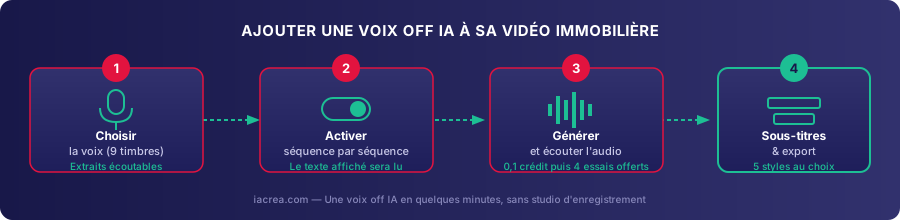
Tutorial: add a voiceover in 4 steps
Step 1: Pick the voice
Open the editor's “Voiceover” panel and go to the “Voice” tab to browse the nine voices. Click “Listen to the excerpt” to hear a short sample before you choose. Your pick applies to the entire video, not to a single sequence.
Step 2: Turn on narration sequence by sequence
Each sequence in the timeline has its own voiceover toggle to switch narration on or off. The voice reads the text you already entered for that sequence, so there's nothing to retype.
The “Voiceover” panel in the IACrea editor, open on a sequence in the timeline
Step 3: Generate the audio and listen back
Click “Generate the voiceover” and the audio shows up in a player built into the sequence. If it doesn't sound right (too fast, flat delivery), click “Regenerate”: up to 4 free takes let you try again at no extra cost.
Step 4: Set up subtitles and export
Turn subtitles on sequence by sequence, choose a style in the global “Subtitles” tab, then export. Each sequence's length adjusts automatically to the length of the generated audio, so the picture never cuts off a sentence mid-word.
Which voice to pick for each type of home
The nine voices don't fit every home equally well. A calm, steady voice sells a family home better than an upbeat one built for a studio aimed at young professionals.
| Type of home | Tone you want | Voice to favor |
|---|---|---|
| Family home, upscale property | Reassuring, steady | Deep, calm voice |
| City condo, first-time buyers | Warm, approachable | Warm or clear voice |
| Studio or small condo for young professionals | Upbeat, enthusiastic | Dynamic or enthusiastic voice |
| Luxury home | Elegant, measured | Mature, elegant voice |
The best habit: write the first sequence of your video, then listen to all nine samples with that text in mind. The same voice sounds different depending on the words it carries. For high-end listings, our guide to staging luxury homes covers the tone to hold across all your content, voiceover included.
Writing narration that works
Since the voiceover reads the on-screen text, writing it well means polishing both at once. A few guidelines that work on IACrea videos:
- One idea per sequence. A short, concrete line (“a south-facing living room with windows on both sides”) lands better than several selling points crammed into one breath.
- A pace close to natural speech. Plan on about 2.5 words per second (roughly 150 words a minute) to match the text to the sequence's actual length. Go beyond that and the audio runs longer than the picture, so the sequence stretches automatically to compensate.
- Words that are easy to say. Abbreviations and complex numbers don't read well aloud: write “twelve hundred square feet” rather than “1,200 sq ft” if the sequence mentions the size.
- A call to action on the last narrated sequence, before the silent closing card.
Subtitles: the 5 available styles
The subtitle style is a global setting, applied to every sequence where subtitles are on. Five presets cover most needs:
| Style | Look | Best for |
|---|---|---|
| Networks | Large uppercase text, the spoken word highlighted in gold | Instagram and TikTok Reels and Stories |
| Karaoke | Dark banner, the current word highlighted | Videos people watch closely, listing pages |
| Highlighted | Colored pill on the current word | A punchy effect that grabs attention in the first seconds |
| Classic | Full sentence on a dark banner | Videos shown on listing portals |
| Elegant | Thin, widely spaced capitals, no banner | Luxury homes, a clean look |
Every style can be fine-tuned with “Customize the style” (color, position, banner opacity), but starting from a preset saves you from rebuilding your look for every new video.
Sharing your narrated video: listing pages and social media
Once exported, the video goes out on several channels, with a different setup for each:
- Your listing pages and website: keep the “Classic” subtitle style, designed for someone watching at a desk, with the sound on or off.
- Instagram and TikTok, exported in vertical format with the “Networks” or “Highlighted” style: nearly all viewing there happens on mute, so the voiceover never replaces subtitles, it adds to them. Our Instagram and Facebook posting tutorial walks you through scheduling once the video is exported.
- Your listing presentation: a narrated video, shown next to your before-and-after examples, strengthens your pitch to a hesitant seller.
For the full editing workflow (not just the voiceover), our complete guide to AI real estate video and our tutorial on editing drone footage cover the rest of the timeline.
Mistakes to avoid when adding a voiceover
- Picking the voice before writing the text. A voice that sounds great on a test line can feel off on your real narration. Always listen to the sample with your own words in mind.
- Overloading a sequence with text. A sentence that runs too long stretches the sequence well past its planned length and breaks the rhythm of the edit.
- Skipping subtitles on vertical formats. Without them, most of your message gets lost on platforms where sound is off by default.
- Trying to narrate a logo or contact card. Those sequences are left out of the voiceover by design, so there's no point forcing narration text onto them.
FAQ
Is the voiceover text different from the text shown on screen? No. The IACrea voiceover reads exactly the text shown on the sequence, so there is no separate script to write. When you edit the on-screen text, the new wording is what the voice says the next time you regenerate.
How much does it cost to generate a voiceover? The first generation for a sequence costs 0.1 credit, then you get 4 free regenerations as long as the text and the voice stay the same. Once those free takes are used up, each new generation costs 0.1 credit again and unlocks 4 more.
Can I use a different voice for each sequence? No. The voice is a global setting that applies to the whole video. What you control sequence by sequence is whether narration is on and whether subtitles are shown.
Does the voiceover read the end cards (logo, contact info)? No. Closing sequences that are purely visual are left out of the voiceover, which only applies to sequences that carry text describing the home.
Do I need subtitles if I already have a voiceover? They are optional but recommended. A large share of social media video is watched with the sound off, so synced subtitles make sure your message lands even on mute.
Can I change the voice after generating several sequences? Yes. When you change the voice in the global panel, only the sequences whose existing audio no longer matches the new voice need to be regenerated, and the estimated cost is shown before you confirm.
Conclusion
Adding a real estate video voiceover takes no voice actor and no studio. In the IACrea editor, you pick a voice, turn on narration sequence by sequence using the text you've already written, then sync subtitles before you export. That turns a silent parade of rooms into a narrated tour, ready for your listing page as well as an Instagram Reel.
Try the IACrea real estate video editor for free and give your next listing video a voice.
About the author

Co-founder & CEO of IACrea
Pauline Clavelloux is co-founder and CEO of IACrea. In daily contact with real estate agencies and agents, she understands their challenges around visibility, marketing and lead generation. On the blog, she shares actionable strategies on real estate marketing, social media and prospecting in the age of AI.
Related articles

Ready to turn your photos into content that sells?
Join thousands of real estate agents using IACrea to create professional content in seconds.
Try for free →