
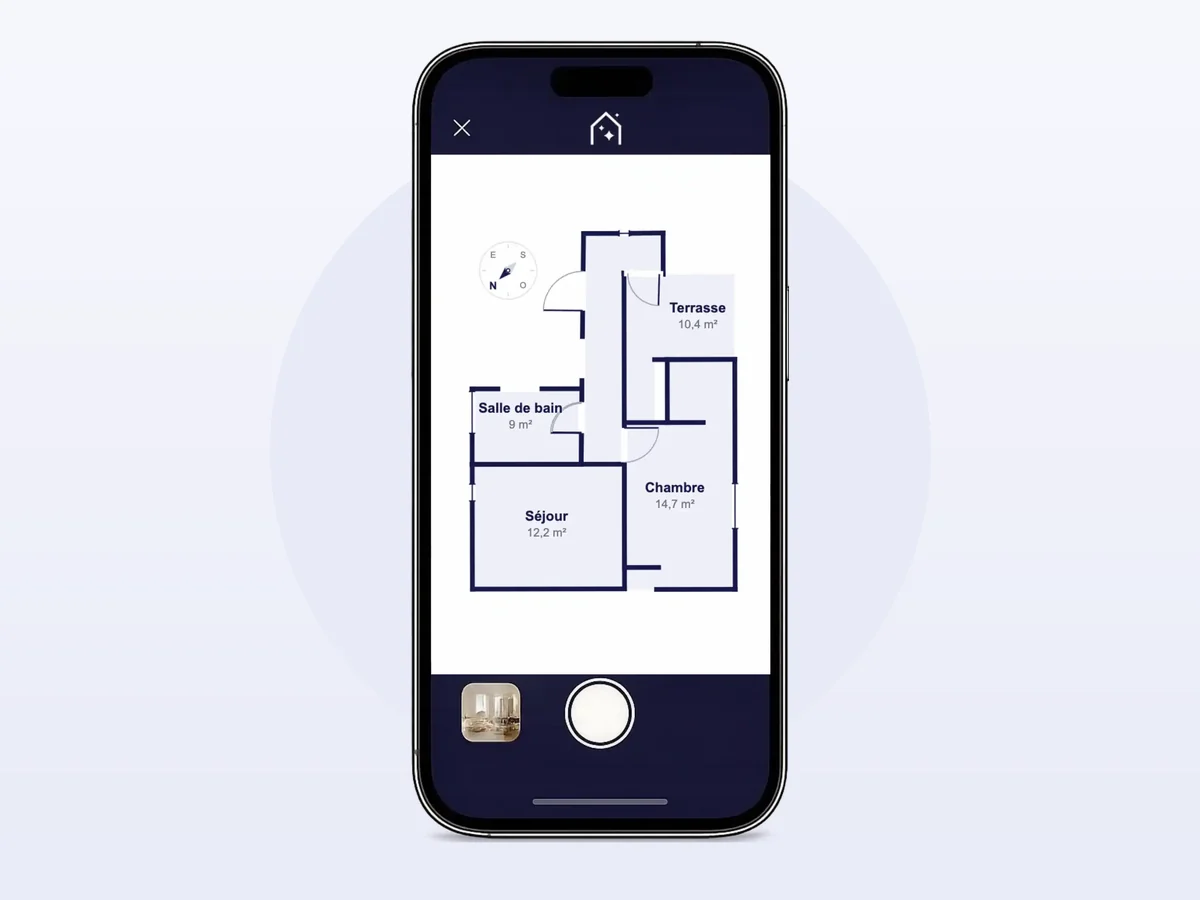
A full room scan takes about as long as reading a text message: thirty seconds to sweep the walls, a camera that follows your movements, and a floor plan that takes shape on screen before you've left the room. No tape measure, no sketch on a notepad, no software to open once you're back at the office.
The technique depends on a sensor that only some iPhones have, and on a specific way of holding and moving the phone. Done right, you get a clean scan on the first pass. Done in a hurry, you end up redoing a whole room back at the office, which is the worst kind of wasted time for a tool that's supposed to save you time.
What you'll learn in this guide:
- Which iPhones can scan a room, and why the others can't
- What to prepare before you start the scan
- The sweeping technique that gets you a usable scan on the first pass
- The mistakes that most often throw off the result, and how to avoid them
- How long it really takes, room by room and home by home
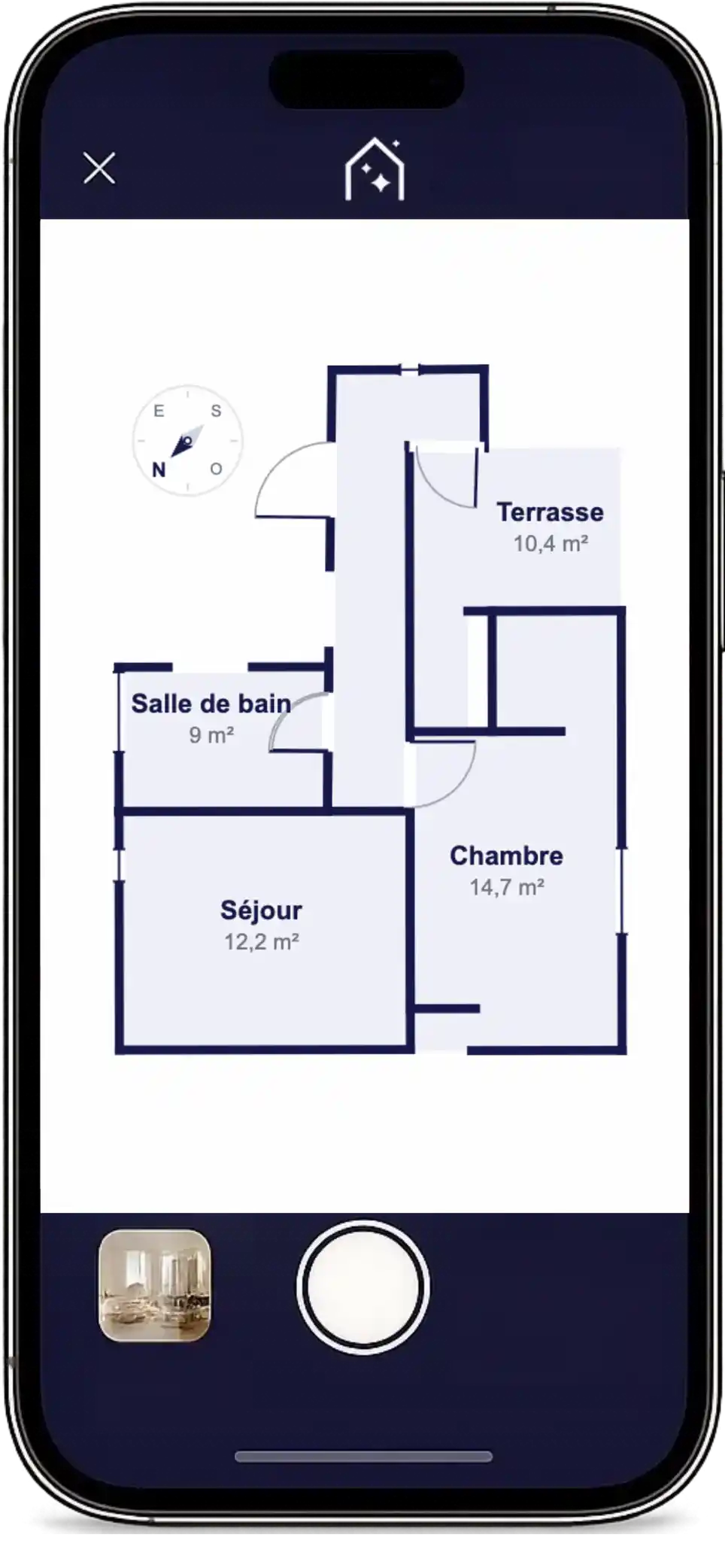 The direct result of the scan: a floor plan to scale, ready before you've even left the home
The sensor that makes it work: which iPhones are compatible
Scanning a room into a floor plan to scale means measuring the depth of the space, not just photographing it. That's the job of the LiDAR Scanner, a sensor that sends out a grid of invisible light beams and times how long they take to bounce back, rebuilding the room's geometry wall by wall in real time.
Apple has kept this sensor for its top-of-the-line models since it first appeared on the iPhone in 2020:
| Year | Models with LiDAR | Models without LiDAR |
|---|---|---|
| 2020 | iPhone 12 Pro, 12 Pro Max | iPhone 12, 12 mini |
| 2021 | iPhone 13 Pro, 13 Pro Max | iPhone 13, 13 mini |
| 2022 | iPhone 14 Pro, 14 Pro Max | iPhone 14, 14 Plus |
| 2023 | iPhone 15 Pro, 15 Pro Max | iPhone 15, 15 Plus |
| 2024 | iPhone 16 Pro, 16 Pro Max | iPhone 16, 16 Plus, 16e |
| 2025 | iPhone 17 Pro, 17 Pro Max | iPhone 17, iPhone Air |
The rule hasn't changed from one generation to the next: only the Pro and Pro Max models have LiDAR, whatever the year (Apple). A standard, mini, Plus or Air iPhone can take excellent real estate photos, but it physically can't run a room scan. The hardware isn't there, and no software update can add it.
How to check if your iPhone is compatible
A quick test: open the built-in Camera app and switch to Portrait mode on a nearby subject. If the soft background blur kicks in instantly without you having to step back, your iPhone most likely has LiDAR. If you're not sure, check the exact model name (Settings > General > About) against the table above.
Before you start the scan: what changes the result
The scan itself takes only a few dozen seconds per room, but three minutes of prep spare you a redo nine times out of ten.
Clear the base of the walls. LiDAR measures what it sees: a box against a wall, a door wide open over part of a wall, or a curtain hanging in front of a window all turn into a phantom wall in the scan. You don't need to empty the room, just clear the bottom of the walls up to about 3 feet (1 m).
Light the room. LiDAR works in the dark (it's an active sensor, not a camera), but recognizing doors, windows and fixed features also relies on the image from the camera lens. A dark room makes that cross-check harder. The same natural light that helps your real estate photos helps the scan too.
Check storage and battery. A room scan doesn't take much space, but ten rooms in a row on a phone at 5% battery will cut out at the worst moment. Two minutes of checking before you walk the home saves you from restarting halfway through.
How to scan a room, step by step
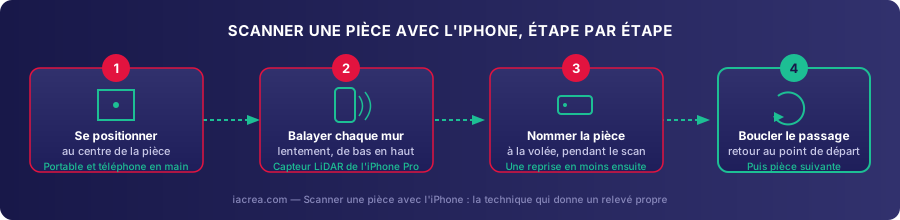 The technique that gets you a usable scan on the first pass, with no return trip
In the IACrea real estate photo app, you start the scan from a listing's capture screen, one room at a time. Four moves are all it takes to get a clean scan.
Step 1: Stand in the center of the room
Start standing in the middle of the room, phone at chest height, screen facing you. This starting point gives the sensor an overview before you even move, and it's your reference for closing the loop at the end.
Step 2: Sweep each wall slowly, from bottom to top
Turn in place, following the walls with your eyes, while the screen shows the part already captured in real time. Speed decides the quality of the result: move too fast and the sensor misses whole sections you'll have to redo. Plan on about fifteen seconds per wall in an average room.
Step 3: Name the room as you go
As soon as the scan starts, a text field lets you type the room's name: living room, bedroom 1, bathroom. Doing it right away costs five seconds on site and saves a tedious cleanup later, when every room looks the same on the thumbnail. It also pays off downstream: the AI furnishing of the floor plan uses these labels to decide what goes where.
Step 4: Close the loop before moving to the next room
Finish by coming back to your starting point, until the app confirms the room is complete. Closing the loop lets the sensor realign the whole path and correct the small drift that builds up during the scan. Then move on to the next room. The floor plan fills in room by room, in the order you walk the home.
Mistakes that throw off the scan
Most scans that need redoing come down to the same handful of causes, all avoidable once you know them:
| Mistake | Effect on the floor plan | How to avoid it |
|---|---|---|
| Sweeping too fast | Missing wall sections, gaps in the floor plan | Slow down, aim for 15 seconds per wall |
| Door left wide open | Opening not detected, wall in the wrong place | Leave doors half open during the scan |
| Furniture against a wall | Wall shifted by the depth of the furniture | Clear the base of the walls up to about 3 ft (1 m) |
| Complex corner (bay window, alcove, curved wall) | Lower accuracy in those spots | Slow down even more in corners, fix later in the editor |
| Room not named during the scan | Tedious manual cleanup later | Always name the room at step 3 |
| Scan stopped before closing the loop | Accumulated drift, wrong dimensions | Always return to your starting point before confirming |
None of these mistakes is fatal: a wall the sensor missed or a missing door can be fixed right in the floor plan editor, with no return trip. Only a room you skipped entirely has to be rescanned.
How accurate is an iPhone scan?
Consumer LiDAR isn't as precise as a surveyor's laser scanner, and it isn't meant to be. A 2024 study comparing the LiDAR sensor in Apple devices (tested on an iPad Pro) with a professional terrestrial laser scanner found linear measurements 1 to 2 cm (under an inch) off in a static scan, and room areas accurate to about 11 sq ft (1 m²) (HBRC Journal). Expect larger errors on complex corners and irregular outlines. In a simple, well-lit room, you'll usually stay at the low end of that range.
That's more than enough for a listing floor plan, whose job is to make the layout easy to read, not to settle a transaction. It isn't enough for an official square footage figure. For single-family homes, Fannie Mae requires appraisers to measure square footage under the ANSI Z765-2021 standard, a requirement in force since April 1, 2022 (Fannie Mae Selling Guide). Present the areas on your floor plan as approximate. Our guide to 2D floor plans for listings explains exactly where that promise ends and how to word it safely with your seller.
How long it really takes, room by room
The 5-minute figure holds for an average condo, but it naturally varies with the number of rooms to cover:
| Home type | Number of rooms | Estimated scan time |
|---|---|---|
| Studio | 1 main room | 1 to 2 min |
| 1-bedroom | 2–3 rooms | 3 to 4 min |
| 2- to 3-bedroom | 4–6 rooms | 5 to 8 min |
| Two-story house | 7+ rooms | 10 to 15 min |
These times cover the scan alone, sweeping and naming included, not later adjustments in the editor. Add a few minutes if the home has complex corners or if you'd rather fine-tune the title block and orientation on site instead of at the office. Either way, the time fits into the listing appointment or photo shoot you were already doing, with no second trip.
No iPhone Pro? Two other ways to get a floor plan
Not everyone on your team has a Pro model, and that's not a dead end.
Borrow a compatible phone. For one visit to the home, a teammate's iPhone Pro is all you need: the scan takes only a few minutes and needs no special setup beyond having the app installed.
Draw the floor plan by hand. The floor plan editor also accepts a blank canvas, which you draw wall by wall from measurements taken with a tape measure or a laser distance meter. It's slower than a scan (plan on an hour or more depending on the home), but it works no matter which phone is in your pocket. Our pricing shows which plans include each method.
FAQ
Which iPhone do I need to scan a room and get a floor plan? An iPhone with a LiDAR Scanner, which Apple has reserved for Pro and Pro Max models since 2020, from the iPhone 12 Pro to the iPhone 17 Pro Max. The standard, mini, Plus and Air models (and the iPhone 16e) don't have it and can't run this kind of scan, whatever version of iOS they're on.
How long does it take to scan a condo with an iPhone? About 5 minutes for a one- or two-bedroom condo, adjustments included: 30 seconds to a minute per room to sweep the walls, plus a few seconds to name each room as you go. A studio takes under 2 minutes; a single-story house with several rooms, 10 to 15 minutes.
Is an iPhone floor plan accurate enough for a listing? Yes for a listing floor plan, no for an official measurement. A 2024 study found Apple's LiDAR sensor within 1 to 2 cm (under an inch) on a single linear measurement, with larger errors on complex corners. That's plenty to show a layout, but it doesn't replace an official square footage figure: appraisers on Fannie Mae loans measure homes under the ANSI Z765-2021 standard.
I don't have an iPhone Pro. Can I still get a 2D floor plan of my listing? Yes, you have two options. Borrow a teammate's iPhone Pro for one visit to the home and run the scan. With no compatible device at all, the floor plan editor also lets you start from a blank canvas and draw the walls by hand from laser measurements. It's slower, but it doesn't depend on any phone model.
Do I have to rescan if I make a mistake mid-scan? Not always. A wall the sensor missed, a missing door or a slightly wrong area can be fixed later in the editor, with no return trip. Only a room you skipped entirely, or a scan stopped before you closed the loop, means rescanning that one room.
Conclusion
Scanning a room with an iPhone isn't a technical stunt for the tech-savvy agent on your team. Once you know the moves, it's thirty seconds per room you can repeat anywhere: stand in the center, sweep slowly, name the room, close the loop. The sensor does the rest.
There's just one thing to check before your next listing appointment: the exact model of the iPhone in your pocket. If it's a Pro, the 2D floor plan for your next listing is five minutes away, and it leaves with your photos from the same visit. The same scan can then be shared with buyers as a 3D floor plan through a simple link, so they can walk through the layout again after the showing.
About the author

Co-founder & CTO of IACrea
Constance Laborie is co-founder and CTO of IACrea, the AI platform that helps real estate professionals create their visuals — photos, virtual home staging and videos — in seconds. She leads the product and technical development of the platform and writes practical guides on real estate photography, virtual home staging and the use of AI in real estate.
Related articles

Ready to turn your photos into content that sells?
Join thousands of real estate agents using IACrea to create professional content in seconds.
Try for free →